How Dossyaay works

Two offices, one shared smile. A short guide for accountants and businesses – screen by screen.

A month in four steps

  1. 1

    Checklist

    The accountant sets once what each client sends. Every month it opens again by itself.

  2. 2

    Upload

    The business uploads item by item or any time – a phone photo is enough. Reminders go out automatically before the due date.

  3. 3

    Review

    The accountant opens each file, then accepts it or asks for a fix with a short note.

  4. 4

    Done. Yaay.

    Everything accepted, the month is closed – download it all (a folder per section), one section, or file by file.

For accountants

Deadline alert and guide at the top

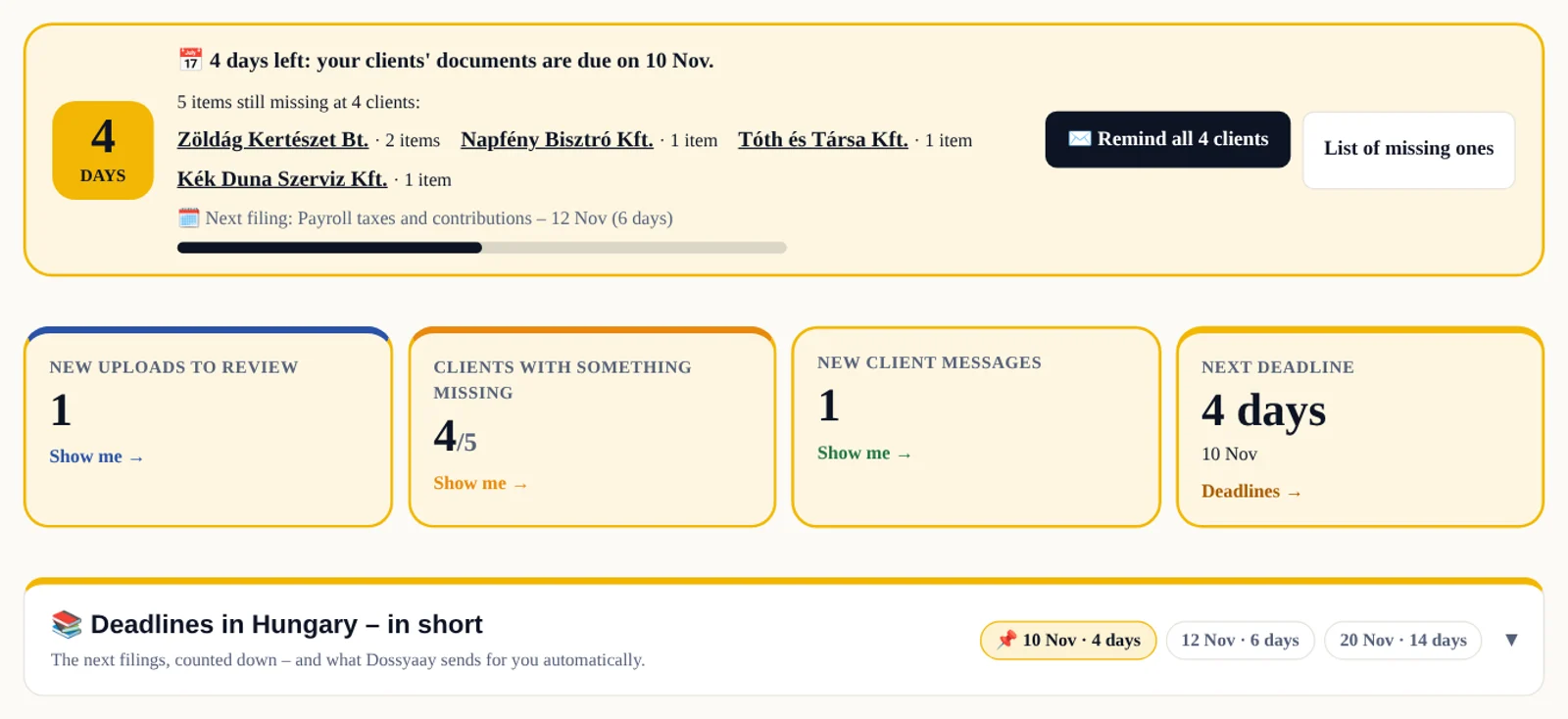
At the very top, the deadline alert: louder day by day (gold → orange → red → TODAY), it names who is missing what and reminds everyone in one click. Below it, four tiles (new uploads, missing, messages, deadline) – click one and the page glides there and the section lights up. The “Deadlines in Hungary” card counts down to the filings. Clients are reminded automatically 7, 3 and 1 days before and on the day (only those with something missing), and you get a summary. The guide shows you where to start. The ring shows how many clients are done. The first unfinished step gets a gold “Start here” label and its own button. Next to it: praise for today’s work, deadline warnings, a tip of the day – and “Write to us” when you need help. Below, “Tips to work faster” suggests – from your own clients – where you can save time (e.g. send the link to those who never opened it, close a month by hand, the request list, data sheets, recommending) – each with one button. Early each month we also show you (and email you) how much time Dossyaay saved you last month.
Deadline alert and guide at the top

Ask, send and new uploads

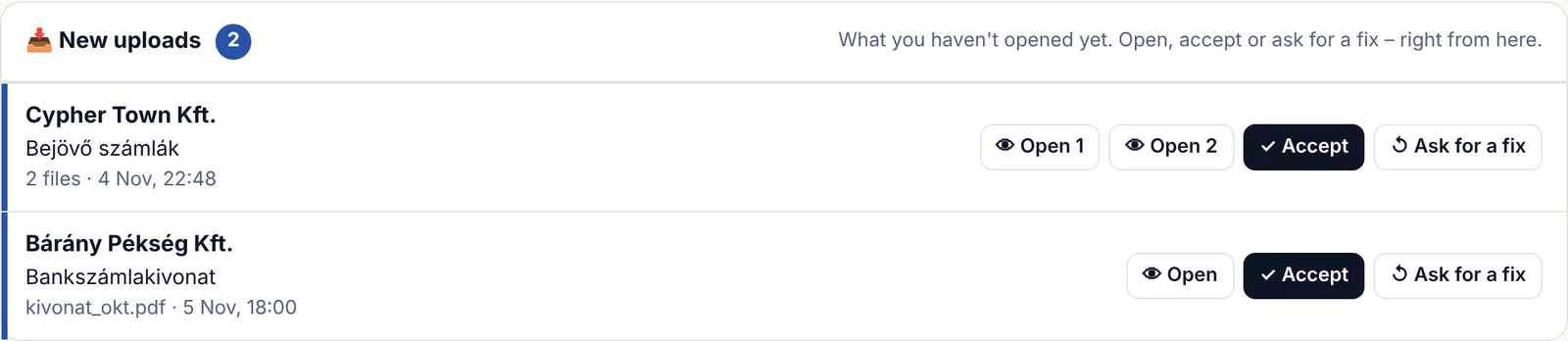
“What I ask my clients for”: tick what you need (edit the list in the ⋯ menu, plus one-off items) and from whom – one, several or all clients; each gets one email. “What I send my clients”: choose the client and upload by section, several files at once. Client messages sit on top – reply in one click. For new uploads: View (a preview without downloading – PDFs and photos), Accept, or Ask for a fix – the client sees your note at once, by email too.

Ask, send and new uploads

The Clients workspace

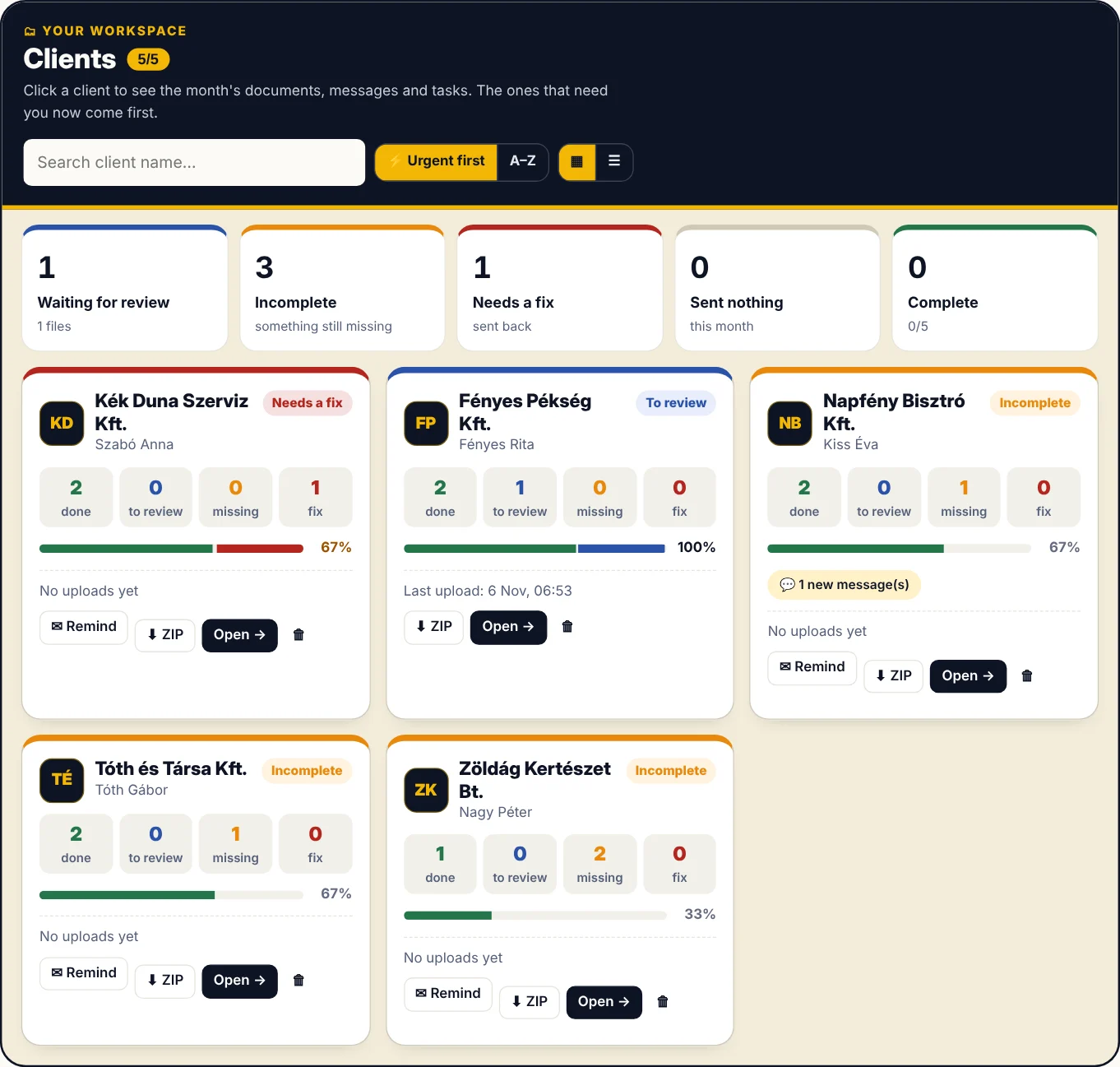
This is your main working area, with a dark header so you find it at once. Pick the month at the top; only clients who were already on Dossyaay that month are listed (it doesn't chase the past). The coloured tiles filter: waiting for review, incomplete, needs a fix, sent nothing, complete. “Urgent first” brings forward the ones that need you now; with many clients, the List view shows one row per client. Every card shows initials or logo, four numbers (done, to review, missing, fix), progress and quick buttons – Remind, ZIP, Open, 🗑 Remove. In the data sheet you can change the sign-in email and add more addresses; under “Remove clients” at the bottom you can remove several at once.

The Clients workspace

One client – everything in one place

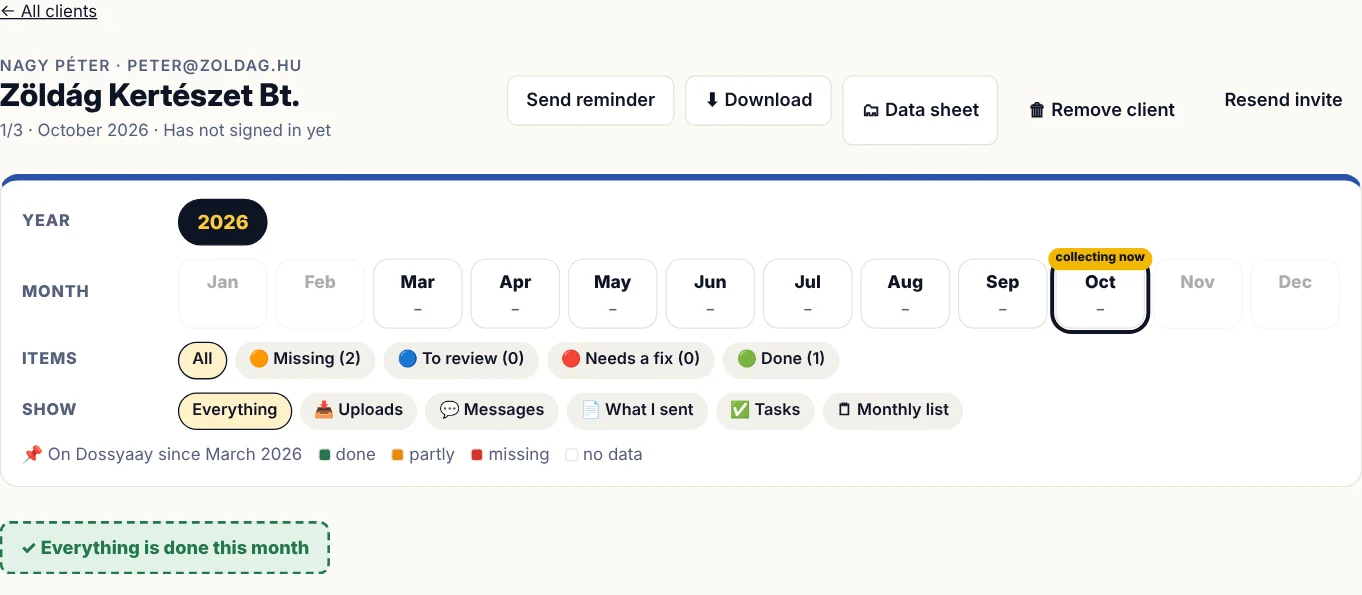
At the top, a year and month picker: the colours show which months are done and which are incomplete; filters show only open, to-review, to-fix or done items, or only uploads, messages, documents or tasks. If the client brought the papers in person or emailed them, close the month with “Everything is done this month” – say how in a few words, and no more reminders go out (you can reopen it). Honesty pays: that month is free for that client (3× per client a year), 5 closes earn the “Honest partner” badge, every 12th a 3,000 HUF bonus, and one click sends the client a friendly invite for next month (“just snap a photo”). Messages, the monthly checklist, documents you sent back (you see when they were opened), and tasks for each other with due dates. Your client never has to sign in: every email has their personal link, where they see what you ask for, upload it, and open what you sent.

One client – everything in one place

Send an email to your clients

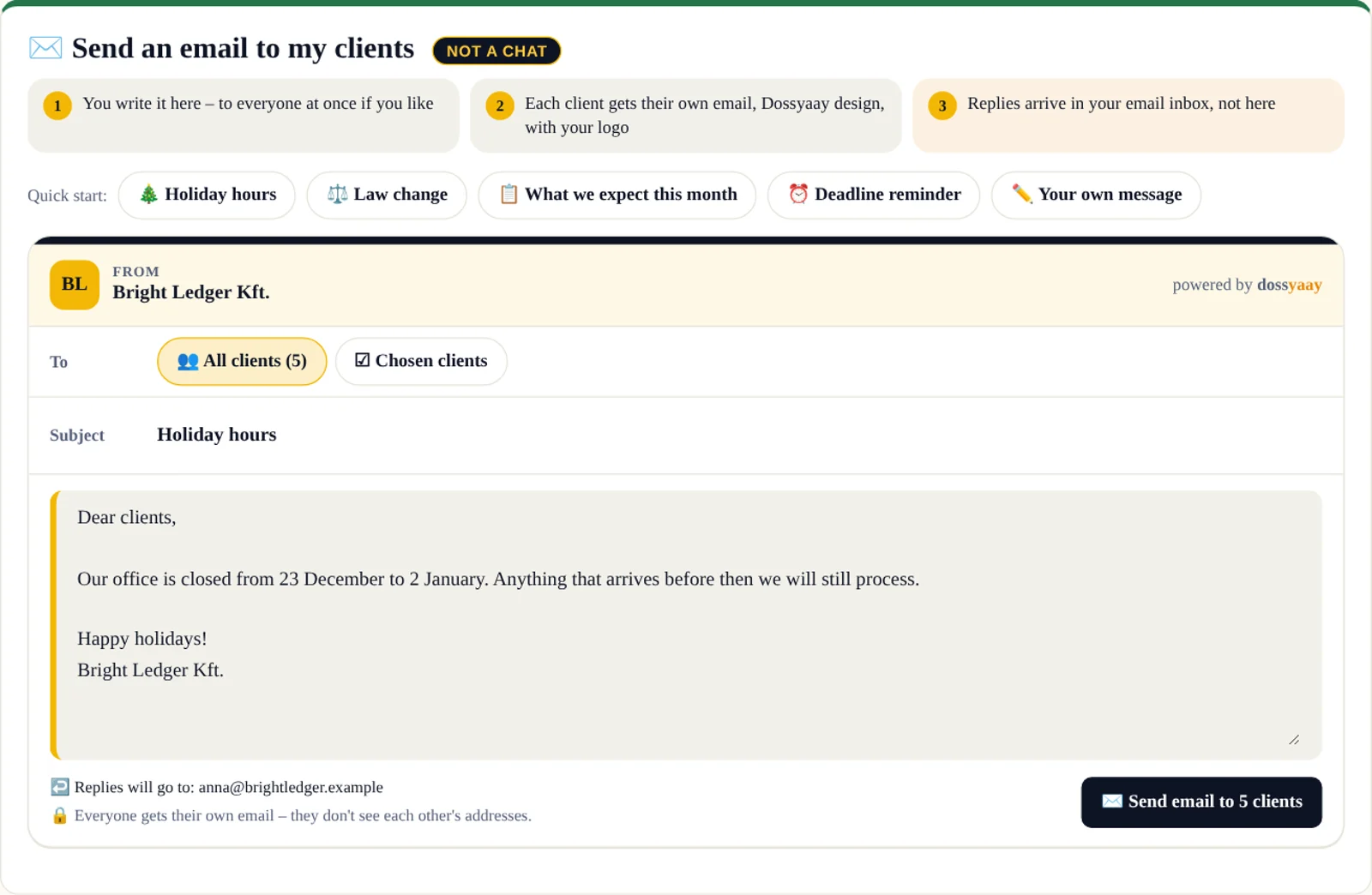
Not a chat: what you write here, each client gets as their own email, in the Dossyaay design with your logo – nobody sees the others' addresses. Ready starters: holiday hours, a law change, what you expect this month, a deadline. Everyone or a chosen few; replies arrive in your own email inbox.

Send an email to your clients

For businesses

Your documents – in your hands

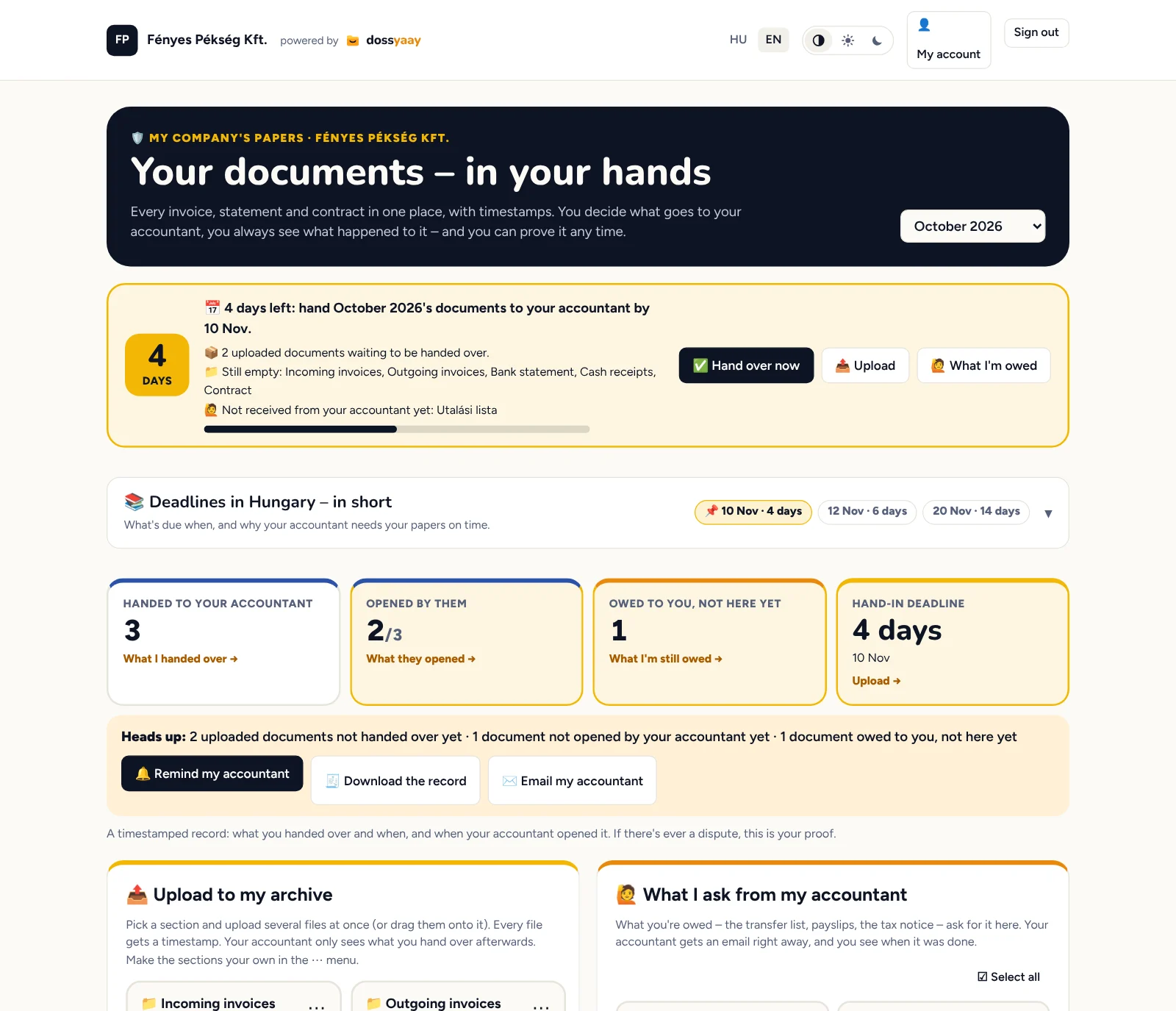
With a business account you name your accountant – they don't need to sign up. No scanner needed: in every section the 📷 Scan button reads the paper with your phone's camera – Dossyaay finds the edges, straightens and sharpens it into a ready PDF (several pages too); check it, accept it or retake it. Every document goes into your archive with a timestamp, and you hand it over in one click – before that you can add a note to any of them (📝), which your accountant sees in the email and on their link. You see what your accountant opened and when; ask for what you're owed (transfer list, payslips, tax notice – one or all, in one email), remind them, and download the record. If several people work on your books, add all their email addresses – they all get every email. Under “Send an email to my accountant” you can write to them from here – it's not a chat: they get an email in the Dossyaay design with your logo and colour, and their reply arrives in your own email inbox. Your accountant can email you the same way from their link. At the top, the deadline bar gets louder day by day (gold → orange → red → TODAY), and if something's still missing (not handed over, an empty section, or something your accountant still owes you), we email you 7 and 3 days before, the day before, and on the day. The “Deadlines in Hungary” card explains in short what's due when (payroll the 12th, VAT the 20th, the yearly ones). If you change accountants, the archive stays with you.

Your documents – in your hands

Your papers, at your pace

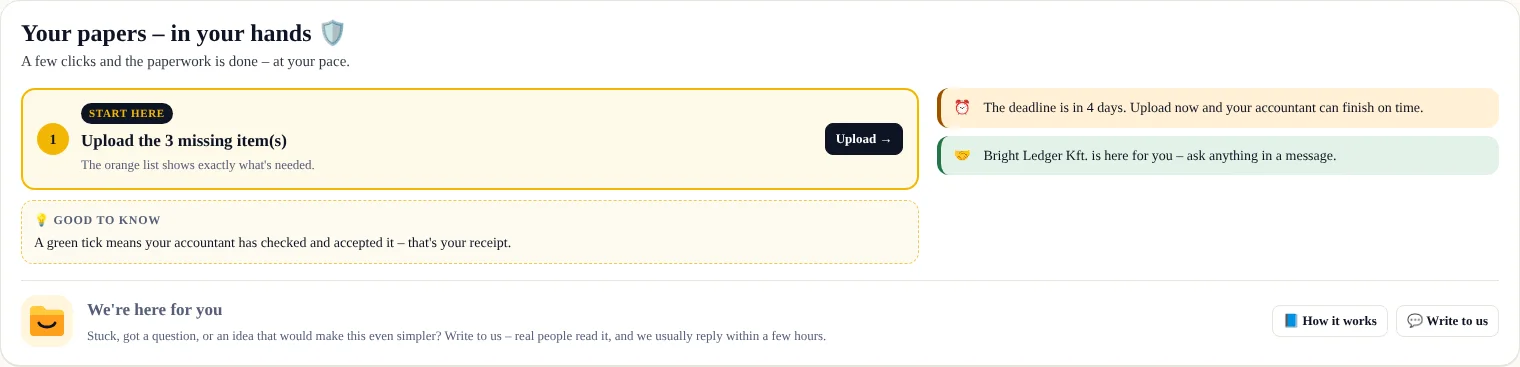
If your accountant already uses Dossyaay, the portal shows one clear next step: a fix first, then missing items. Every upload is timestamped and the green tick is your receipt – so you can always prove what you handed in and when.

Your papers, at your pace

Three colour zones

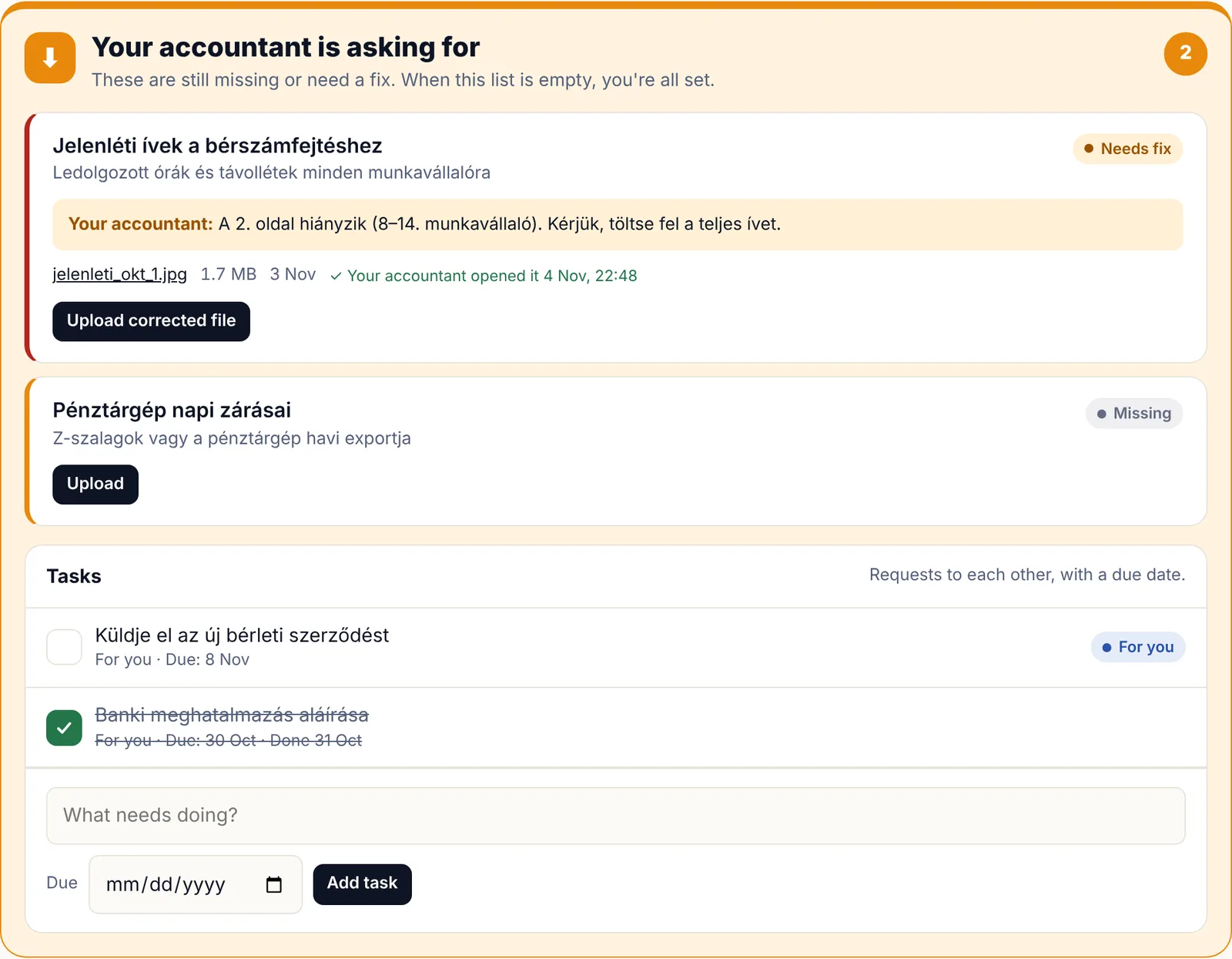
Orange: what your accountant asks for (missing or needs a fix). Blue: what you've handed over – timestamped. Green: what you're owed and received (payslips, notices). Upload invoices any time, even one by one.

Three colour zones

Messages with your accountant

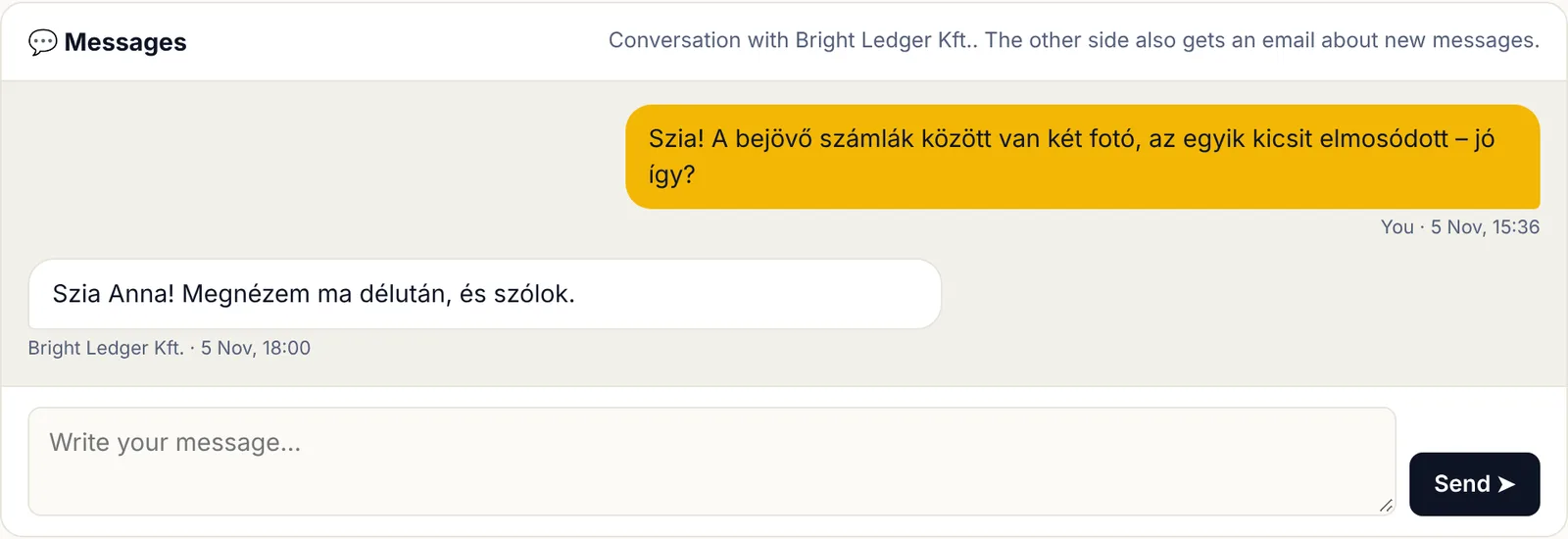
The conversation stays next to the documents instead of getting lost in email. Both sides get an email about new messages.

Messages with your accountant

Questions? Write to us from any screen with the “Write to us” button – real people read it, and we usually reply within a few hours.

Screenshots show sample data.